1
1Start a workflow#
- Click Automations
- Click + Create workflow, then Start from Scratch
TipYou need a Jtek number, so call it from a friend's phone first and make sure it rings you.
app.jtek.pro
J
Dashboard
AI
CRM
Automations
Marketing
Sites
Support
Settings
Dashboard
Search⌘K
Ask AI
jJtekNewLast 30 daysEdit dashboard
New contacts61
Messages sent248
Phone calls37
Missed calls4
TasksAll000
No open tasks. Nice work.
Buyers pipeline value
$2.1M
New Lead$420K
Pending Pre-Approval$310K
Home Shopping$720K
Pending$455K
Sold$195K
Not Ready$0
Lead sources
61
Instagram
Website form
Calendar booking
Conversation
Other
Calendar
Today2
10:00 AMDavid KimBuyer consult
3:30 PMAna LopezListing walkthrough
Tomorrow1
11:00 AMMaria SantosShowing
J
Dashboard
AI
CRM
Automations
Marketing
Sites
Support
Settings
Automations›WorkflowsSearch⌘KAsk AIj
Workflows listWorkflow Maps BetaCreate folderBuild using AICreate workflow
All workflowsNeeds review (0)DeletedNew smart listCustomize list
Advanced filtersSearch
Home
NameStatusTotal enrolledActive enrolledLast updatedCreated on
BuyersSep 14 2026, 9:02 AMSep 14 2026, 9:02 AM
InstagramSep 21 2026, 5:16 PMSep 21 2026, 5:16 PM
SellersAug 02 2026, 10:37 AMAug 02 2026, 10:37 AM
Buyer follow upDraft00Oct 30 2026, 4:12 PMOct 28 2026, 2:39 PM
Speed to Lead TextPublished3124Sep 29 2026, 8:41 PMMay 12 2026, 11:31 AM
Instagram comment to DMPublished872Sep 21 2026, 12:29 PMSep 11 2026, 11:56 AM
Start from Scratch
Build Using AI
Select from Template
Import from a campaign
Company based workflow
Workflows listJust Sold VM Drop Saved
BuilderSettingsDraft Publish
Add first step
1Click Automations
app.jtek.pro
Workflows listJust Sold VM Drop Saved
BuilderSettingsDraft Publish
Add first step
Workflows listJust Sold VM Drop Saved
BuilderSettingsDraft Publish
Add first step
Add trigger×
Search triggers
TriggersApps
Recent triggers
Pipeline stage changed
Contact tag
Appointment status
Contact
Birthday reminder
Contact changed
Contact created
Contact tag
Custom date reminder
1Click Add first step
app.jtek.pro
Workflows listNew Workflow Saved
BuilderSettingsDraft Publish
Add first step
← BackLearn more×
Contact tag
Runs when the specified tag is applied or cleared.
SetupTest
Choose a workflow trigger
Contact tag
Workflow trigger name
Contact Tag
Filters
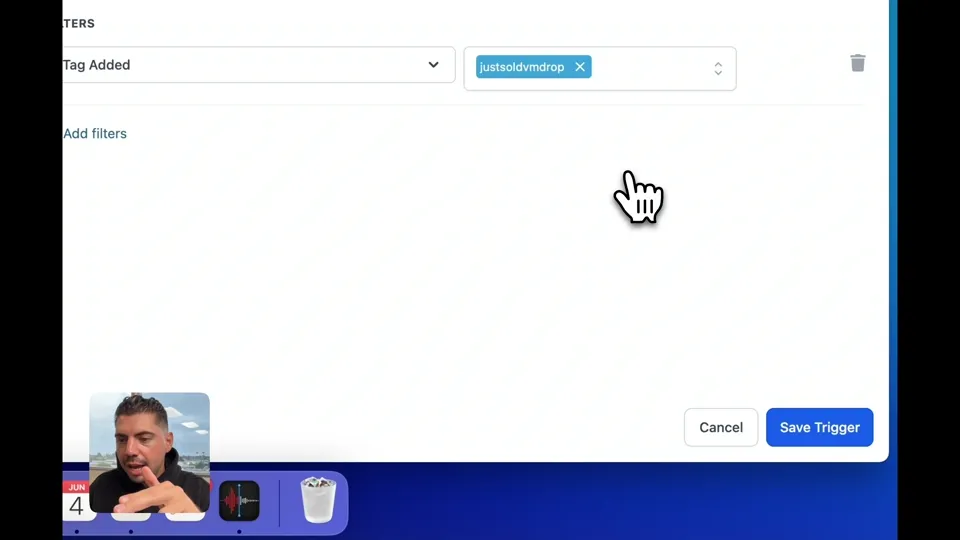
Tag added
Select a tag
Add filters
CancelSave trigger
Workflows listBuyer follow up Saved
BuilderSettingsDraft Publish
Contact Tag
+Actions×
Search actions
ActionsApps
Recent actions
Send email
Wait
Send SMS
Remove from workflow
Send internal notification
Contact
Create contact
Find contact
Update contact field
Add contact tag
1Set Tag added to a new tag, like just sold vm drop
app.jtek.pro
Workflows listJust Sold VM Drop Saved
BuilderSettingsDraft Publish
Contact Tag
+ Workflows listJust Sold VM Drop Saved
BuilderSettingsDraft Publish
Contact Tag
+Actions×
Search actions
ActionsApps
Recent actions
Send email
Wait
Send SMS
Remove from workflow
Send internal notification
Internal
Drip
Workflows listJust Sold VM Drop Saved
BuilderSettingsDraft Publish
Contact Tag
+← BackLearn more×
SMS
Sends a text message to the contact
SetupTest
Action name
Day 1 Check-In
Templates
Select template
Message
Hi {{contact.first_name}}, still thinking about buying? Happy to answer any questions.
CancelSave action
1Click + after the trigger
5
5Send one a minute#
- Change Batch size from 100 to 1
- Keep Drip interval at 1 minute, then click Save action
app.jtek.pro
Workflows listJust Sold VM Drop Saved
BuilderSettingsDraft Publish
Contact Tag
+← BackLearn more×
Drip
Proceed to next step in batches, at regular interval.
SetupTest
Action name
Drip mode
Batch size
100
Drip interval
1
minutes
Review drip schedule
CheckClick to preview drip schedule
CancelSave action
Workflows listJust Sold VM Drop Saved
BuilderSettingsDraft Publish
Contact Tag
Drip mode(Default Path)
+1Change Batch size from 100 to 1
app.jtek.pro
Workflows listJust Sold VM Drop Saved
BuilderSettingsDraft Publish
Contact Tag
Drip mode(Default Path)
+ Workflows listJust Sold VM Drop Saved
BuilderSettingsDraft Publish
Contact Tag
Drip mode(Default Path)
+Actions×
Search actions
ActionsApps
Recent actions
Send email
Wait
Send SMS
Remove from workflow
Send internal notification
Communication
Voicemail
IVR
Record voicemail
Workflows listJust Sold VM Drop Saved
BuilderSettingsDraft Publish
Contact Tag
Drip mode(Default Path)
+← BackLearn more×
Wait
Holds a contact for a specific time, until a condition exists, or until the contact replies
SetupTest
Action name
Wait 3 Days
Selected wait type
For a set period of time
Time period
3
Unit
days
CancelSave action
1Click + after Drip
7
7Upload it#
- Click Add attachments and pick your MP3
- Click Save action
TipRecord it in Voice Memos, then convert the .m4a file to MP3.
app.jtek.pro
Workflows listJust Sold VM Drop Saved
BuilderSettingsDraft Publish
Contact Tag
Drip mode(Default Path)
+← BackLearn more×
Voicemail
Pushes a pre-recorded voicemail file to the contact
SetupTest
Action name
Voicemail
Drop your file
Add attachments
CancelSave action
Workflows listJust Sold VM Drop Saved
BuilderSettingsDraft Publish
Contact Tag
Drip mode(Default Path)
Voicemail
+1Click Add attachments and pick your MP3
8
8Set the hours#
- Click the Settings tab
- Under Time window, turn on Specific time
- Set Start time 10:00 AM and End time 4:30 PM
TipNew numbers start at about 400 drops a day, and 1 a minute from 10:00 AM to 4:30 PM sends about 390.
app.jtek.pro
Workflows listJust Sold VM Drop Saved
BuilderSettingsDraft Publish
Contact Tag
Drip mode(Default Path)
Voicemail
+ Workflows listJust Sold VM Drop Saved
BuilderSettingsDraft Publish
Workflow settings
Configure how this workflow runs, including its default options and behavior.
Contact
Allow re-entry
Allows a Contact to re-enter once it has left this workflow.
Allow multiple opportunities
Allows a contact with multiple opportunities to enter the workflow as separate executions.
Stop on response
Ends workflow for a contact if the contact responds to a message that is sent from this workflow.
Communication
Timezone
Account timezone
Time window
Specific time
Restrict actions from being sent outside the window you define.
Start time
08:00 AM
End time
5:00 PM
Include days
SundayMondayTuesdayWednesdayThursdayFridaySaturdaySaturday
1Click the Settings tab
9
9Turn it on and test it#
- Turn on Publish
- Click Test workflow, then Enroll a contact
- Pick yourself, then click Start test run
TipPick yourself so the test voicemail comes to your own phone.
app.jtek.pro
Workflows listJust Sold VM Drop Saved
BuilderSettingsTest workflowDraft Publish
Contact Tag
Drip mode(Default Path)
Voicemail
+▷
Test workflow
×Run the whole workflow against a real event.
New testHistory
Test using events
Enroll a contact
Select Trigger
Contact Tag
Listen for events
Records real Contact tag events for 15 minutes.
How to record a test event
1. While listening is on, we record the next Contact tag event in your account.
2. The event appears here within seconds of happening. Pick it to test the trigger.
Test using events
Enroll a contact
Select a contact
Select a contact
Contact data
Search fields
CancelStart test run
1Turn on Publish
app.jtek.pro
J
Dashboard
AI
CRM
Automations
Marketing
Sites
Support
Settings
CRM
Conversations
Calendars
Contacts
Opportunities
Tasks
Power Dialer
Custom Fields
Custom Values
Dashboard
Search⌘K
Ask AI
jJtekNewLast 30 daysEdit dashboard
New contacts61
Messages sent248
Phone calls37
Missed calls4
TasksAll000
No open tasks. Nice work.
Buyers pipeline value
$2.1M
New Lead$420K
Pending Pre-Approval$310K
Home Shopping$720K
Pending$455K
Sold$195K
Not Ready$0
Lead sources
61
Instagram
Website form
Calendar booking
Conversation
Other
Calendar
Today2
10:00 AMDavid KimBuyer consult
3:30 PMAna LopezListing walkthrough
Tomorrow1
11:00 AMMaria SantosShowing
J
Dashboard
AI
CRM
Automations
Marketing
Sites
Support
Settings
CRMContactsSmart ListsSearch⌘KAsk AIj
AllClientsBuyers6 MoreAddAI campaignImport
FiltersSort1,240 Contacts7/55 columnsSearch contacts
Selected: 3 Select all: 1,240 Send SMS Send email Power DialerMore
Send WhatsApp
Request reviews
Manage opportunities
Trigger automation
Assign to User
Add tags
Remove tags
Export
Merge
Verify email addresses
Delete
Contact namePhoneEmailBusiness nameCreated (PST)Last activity (PST)Tags
MSMaria Santos(562) 555-0148maria.santos@gmail.comNov 10, 2026
06:17 PM2 hours agobuyer+1
DKDavid Kim(562) 555-0193dkim.homes@gmail.comNov 10, 2026
05:27 PM1 hour agoseller
ALAna Lopezana.lopez@outlook.comNov 9, 2026
02:56 PM1 day ago
CYChris Young(714) 555-0175chris@youngfamily.netYoung DentalNov 7, 2026
06:38 PM11 hours agobuyer+2
PSPriya Shah(562) 555-0131Nov 5, 2026
04:19 PM4 days agosphere
MWMarcus Webb(310) 555-0182mwebb@gmail.comNov 4, 2026
01:13 PM7 hours agopast client+4
KKaren Liukaren.liu@yahoo.comNov 3, 2026
01:18 PM3 days ago
JRJordan Reyes(562) 555-0164Nov 2, 2026
12:37 PM1 week agoopen house
TBTyler Brooks(657) 555-0122tbrooks@icloud.comNov 2, 2026
10:17 AM2 hours agoseller+1
SSofia Nguyensofia.nguyen@gmail.comNov 1, 2026
04:35 PM1 week ago
Page 1 of 6220Prev1Next
1Click CRM, then Contacts
app.jtek.pro
J
Dashboard
AI
CRM
Automations
Marketing
Sites
Support
Settings
CRMContactsSmart ListsSearch⌘KAsk AIj
AllClientsBuyers6 MoreAddAI campaignImport
FiltersSort1,240 Contacts7/55 columnsSearch contacts
Selected: 3 Select all: 1,240 Send SMS Send email Power DialerMore
Send WhatsApp
Request reviews
Manage opportunities
Trigger automation
Assign to User
Add tags
Remove tags
Export
Merge
Verify email addresses
Delete
Contact namePhoneEmailBusiness nameCreated (PST)Last activity (PST)Tags
MSMaria Santos(562) 555-0148maria.santos@gmail.comNov 10, 2026
06:17 PM2 hours agobuyer+1
DKDavid Kim(562) 555-0193dkim.homes@gmail.comNov 10, 2026
05:27 PM1 hour agoseller
ALAna Lopezana.lopez@outlook.comNov 9, 2026
02:56 PM1 day ago
CYChris Young(714) 555-0175chris@youngfamily.netYoung DentalNov 7, 2026
06:38 PM11 hours agobuyer+2
PSPriya Shah(562) 555-0131Nov 5, 2026
04:19 PM4 days agosphere
MWMarcus Webb(310) 555-0182mwebb@gmail.comNov 4, 2026
01:13 PM7 hours agopast client+4
KKaren Liukaren.liu@yahoo.comNov 3, 2026
01:18 PM3 days ago
JRJordan Reyes(562) 555-0164Nov 2, 2026
12:37 PM1 week agoopen house
TBTyler Brooks(657) 555-0122tbrooks@icloud.comNov 2, 2026
10:17 AM2 hours agoseller+1
SSofia Nguyensofia.nguyen@gmail.comNov 1, 2026
04:35 PM1 week ago
Page 1 of 6220Prev1Next
J
Dashboard
AI
CRM
Automations
Marketing
Sites
Support
Settings
CRMContactsSmart ListsSearch⌘KAsk AIj
AllClientsBuyers6 MoreAddAI campaignImport
FiltersSort1,240 Contacts7/55 columnsSearch contacts
Contact namePhoneEmailBusiness nameCreated (PST)Last activity (PST)Tags
MSMaria Santos(562) 555-0148maria.santos@gmail.comNov 10, 2026
06:17 PM2 hours agobuyer+1
DKDavid Kim(562) 555-0193dkim.homes@gmail.comNov 10, 2026
05:27 PM1 hour agoseller
ALAna Lopezana.lopez@outlook.comNov 9, 2026
02:56 PM1 day ago
CYChris Young(714) 555-0175chris@youngfamily.netYoung DentalNov 7, 2026
06:38 PM11 hours agobuyer+2
PSPriya Shah(562) 555-0131Nov 5, 2026
04:19 PM4 days agosphere
MWMarcus Webb(310) 555-0182mwebb@gmail.comNov 4, 2026
01:13 PM7 hours agopast client+4
KKaren Liukaren.liu@yahoo.comNov 3, 2026
01:18 PM3 days ago
JRJordan Reyes(562) 555-0164Nov 2, 2026
12:37 PM1 week agoopen house
TBTyler Brooks(657) 555-0122tbrooks@icloud.comNov 2, 2026
10:17 AM2 hours agoseller+1
SSofia Nguyensofia.nguyen@gmail.comNov 1, 2026
04:35 PM1 week ago
Page 1 of 6220Prev1Next
Add tags
Specified tags will get added to all the selected contacts
Add tags to following contacts
MSDK
Action name *
Tag open house guests
Tags *
open housebuyer
Bulk actions are performed over a period of time. You can track the progress on the bulk actions page.
CancelAdd tags
1Click More
app.jtek.pro
J
Dashboard
AI
CRM
Automations
Marketing
Sites
Support
Settings
CRMContactsSmart ListsSearch⌘KAsk AIj
AllClientsBuyers6 MoreAddAI campaignImport
FiltersSort1,240 Contacts7/55 columnsSearch contacts
Contact namePhoneEmailBusiness nameCreated (PST)Last activity (PST)Tags
MSMaria Santos(562) 555-0148maria.santos@gmail.comNov 10, 2026
06:17 PM2 hours agobuyer+1
DKDavid Kim(562) 555-0193dkim.homes@gmail.comNov 10, 2026
05:27 PM1 hour agoseller
ALAna Lopezana.lopez@outlook.comNov 9, 2026
02:56 PM1 day ago
CYChris Young(714) 555-0175chris@youngfamily.netYoung DentalNov 7, 2026
06:38 PM11 hours agobuyer+2
PSPriya Shah(562) 555-0131Nov 5, 2026
04:19 PM4 days agosphere
MWMarcus Webb(310) 555-0182mwebb@gmail.comNov 4, 2026
01:13 PM7 hours agopast client+4
KKaren Liukaren.liu@yahoo.comNov 3, 2026
01:18 PM3 days ago
JRJordan Reyes(562) 555-0164Nov 2, 2026
12:37 PM1 week agoopen house
TBTyler Brooks(657) 555-0122tbrooks@icloud.comNov 2, 2026
10:17 AM2 hours agoseller+1
SSofia Nguyensofia.nguyen@gmail.comNov 1, 2026
04:35 PM1 week ago
Page 1 of 6220Prev1Next
Add tags
Specified tags will get added to all the selected contacts
Add tags to following contacts
MSDK
Action name *
Just sold voicemail drop
Tags *
just sold vm drop
Bulk actions are performed over a period of time. You can track the progress on the bulk actions page.
CancelAdd tags
1Pick just sold vm drop